Overview
Rendering minutes measure video generation activity in Lucas. Understanding how and when rendering minutes are consumed helps you manage your account usage and optimize your video creation workflow.
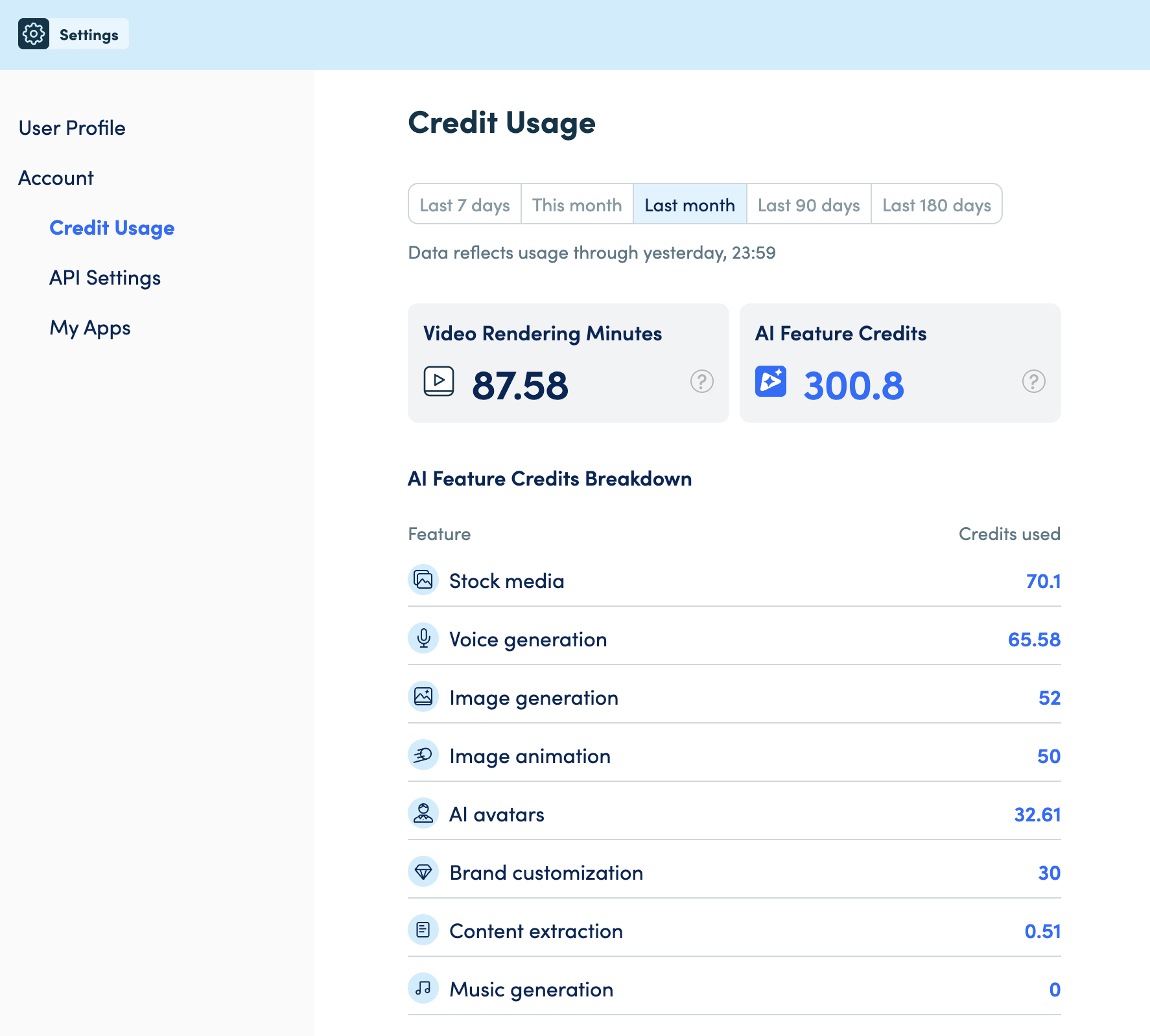
You can view your rendering minutes usage in your account under Settings > Account > Credit Usage, with options to see activity for the last 7 days, this month, last month, last 90 days, or last 180 days.
Note: Credit Usage also displays AI Feature Credits, which are separate from Video Rendering Minutes and track usage of AI-powered features like stock media, voice generation, image generation, and AI avatars.
Tracking Your Usage
Accessing Credit Usage
Location: Settings > Account > Credit Usage
The Credit Usage page shows:
Usage Metrics:
- Video Rendering Minutes - Video generation activity consumed
- AI Feature Credits Breakdown - AI-powered feature usage by type
Available Time Period Views
You can view your consumption history across different time periods:
- Last 7 days: Rolling 7 days from current date backwards
- This month: From the first day of the current month to today
- Last month: Full previous calendar month
- Last 90 days: Rolling 90 days from current date backwards
- Last 180 days: Rolling 180 days from current date backwards
All date ranges use your account's configured timezone
Data freshness: Usage data reflects activity through yesterday, 23:59
Video Rendering Minutes
This metric shows the total rendering minutes consumed during the selected time period from:
- Initial video creation
- Saving edits
- Publishing videos
Generating seconds are rounded up to 30 seconds.
AI Feature Credits (Separate from Rendering Minutes)
If your account uses AI-powered features, you'll also see AI Feature Credits consumption broken down by:
- Stock media
- Voice generation
- Image generation
- Image animation
- AI avatars
- Brand customization
- Content extraction
- Music generation
Note: AI Feature Credits are measured and billed separately from Video Rendering Minutes.
Available Balance
Available Rendering Minutes - Your remaining rendering minutes allocation can be found under Settings > Account Usage
Common Questions
Q: Where can I see how many rendering minutes I have available?
A: Go to Settings > Account > Credit Usage. Your Available Rendering Minutes balance is displayed at the top of the page.
Q: Where can I see my rendering minutes usage?
A: Go to Settings > Account > Credit Usage. You can view Video Rendering Minutes consumed for the last 7 days, this month, last month, last 90 days, or last 180 days.
Q: What's the difference between Video Rendering Minutes and AI Feature Credits?
A: Video Rendering Minutes track video generation activity (creation, saves, publishes). AI Feature Credits track usage of AI-powered features like voice generation, image generation, AI avatars, and other AI capabilities. These are measured and billed separately.
Q: What does "Data reflects usage through yesterday, 23:59" mean?
A: Credit Usage shows consumption through the end of the previous day. Today's activity will appear tomorrow.
Q: What happens if I run out of rendering minutes?
A: Contact your account administrator or Idomoo support to discuss increasing your allocation.
Learn More
Related Academy Articles
- User Usage Report - See how video creation and publishing activity is tracked per user (note: this shows video duration, not rendering minutes consumed)
- Understanding Raw Data Reports - Learn about Views, Engagement, and Render reports
- Data Upload Compliance Report - Track file upload confirmations (if enabled for your account)